
Keeping your product tours up-to-date ensures your users always have the most relevant guidance. Follow these steps to modify your existing tours and understand how those changes impact your audience.
How to Edit Your Tour
Access the Editor: Log into your account and click the Edit button next to the tour you wish to modify.
Make Your Changes: You will be redirected to the Visual Editor. Here, you can adjust steps, pointers, and text just as you did during the initial setup (see our Create Tours guide for a refresher).
Save Your Progress:
- Draft Tours: Changes are saved automatically.
- Live Tours: To push updates to your active users, you must manually click the Save button to confirm the changes.
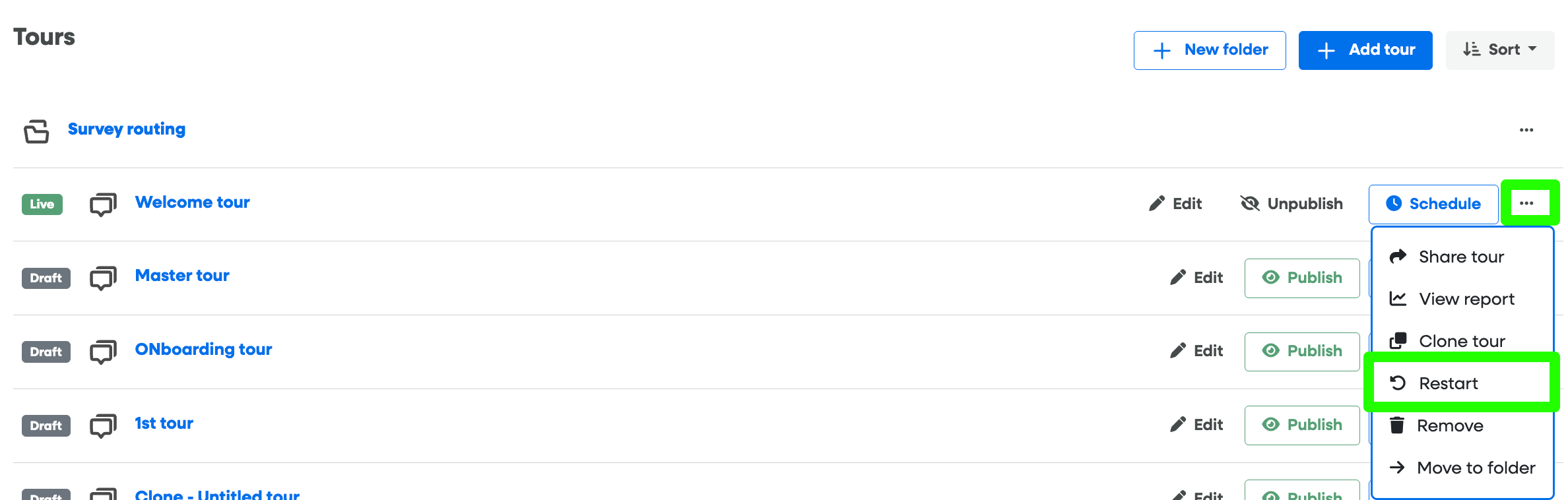
Understanding the "Restart Tour" Option
The Restart Tour feature resets the completion status for all users. This is particularly useful after a major product redesign or a significant update to the tour flow.
Note: Restarting a tour does not reset or delete your historical data in the Reports section. Your analytics remain intact.
Impact on Existing Users
When you modify a tour, the experience for your users changes depending on the type of update:
| Change Type | Impact on Users |
| Content Updates | Only the text or media within the tour steps will change; user progress remains the same. |
| Restart Tour |
|
Content Snapshots, Version History & Backups
To give you peace of mind while editing, we provide a built-in safety net for your content:

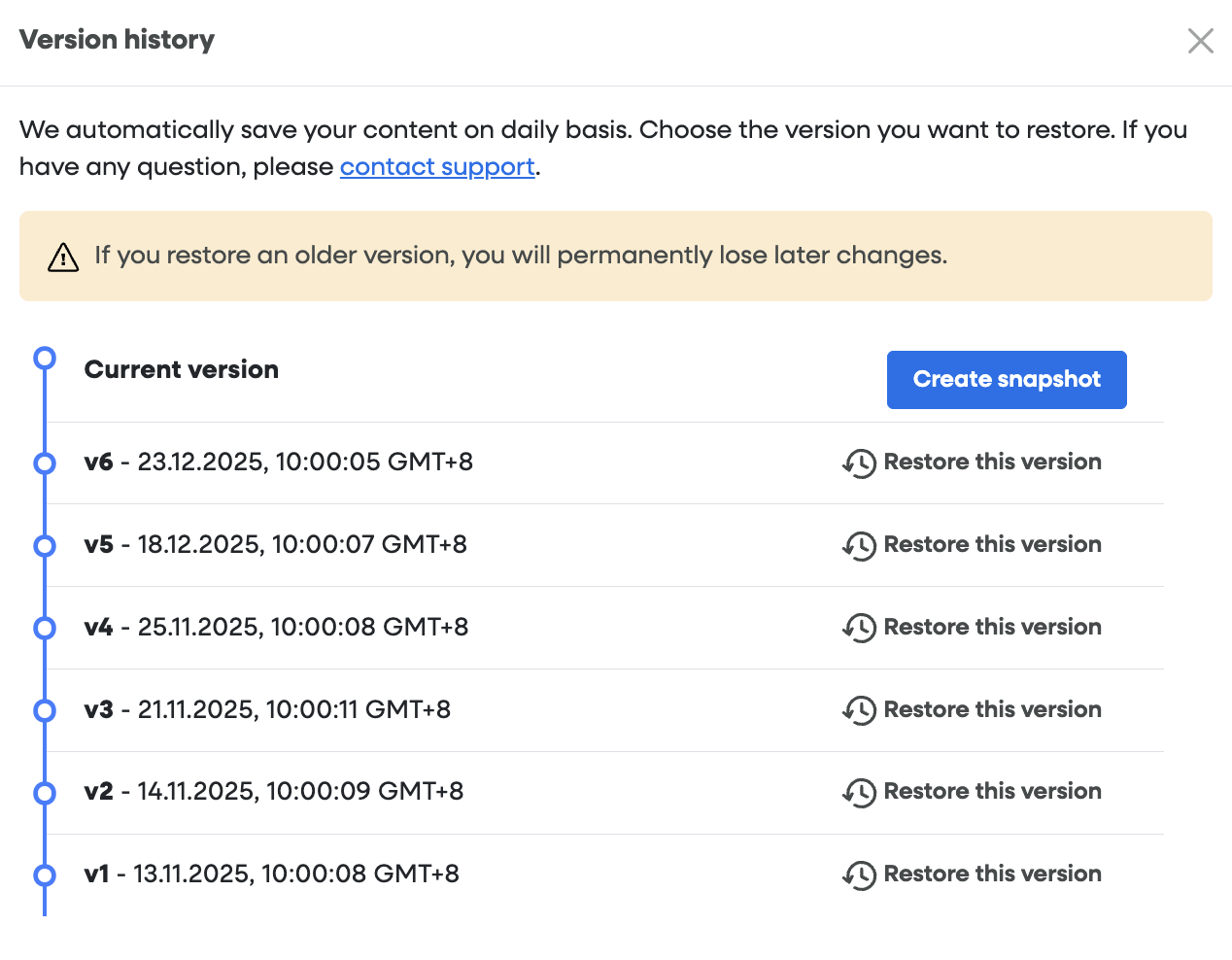
Automatic Backups: We automatically save your tour content on a daily basis, ensuring you always have a recent recovery point.
Manual Snapshots: For extra security, you can manually create a content snapshot before making any major amendments. This allows you to capture a specific "clean" version of your tour before experimenting with new changes.
Restoring Content: If you make a mistake or prefer an older iteration, simply access the Version History menu to choose the specific version you wish to restore.
Frequently Asked Questions
- Will my users see my changes immediately?
If the tour is Live, changes take effect as soon as you click Save. If the tour is a Draft, the changes are saved for you internally but will not be visible to your users until you publish the tour.
- Can I undo changes after clicking Save?
Once you save changes to a Live tour, they are pushed to production. However, you can use the Version History feature to roll back to a previous state if needed.
- Does editing a tour step break the "Restart" logic?
No. Simply editing the text or content of a step does not force users to see the tour again. Only clicking the explicit Restart Tour button will trigger a reset for users who have already completed it.
- What happens if I delete a step while a user is currently mid-tour?
The tour will dynamically update. If a user is on a step that is removed, the tour will typically skip to the next available step or end gracefully, depending on your specific transition settings.
- Is there a limit to how many times I can restart a tour?
There is no limit! However, we recommend using this sparingly to avoid "onboarding fatigue" for your long-term users.