
Content Throttling allows you to control the frequency of autoplay tours and surveys. By setting these limits, you ensure a balanced user experience—delivering important messages without overwhelming your audience.
How It Works
Throttling operates on a Limit + Time logic:
Define a Maximum: Set the total number of times content can be displayed.
Set a Renewal Period: Define the timeframe after which the counter resets.
Automatic Pause: Once the limit is reached, all autoplay content is suppressed until the renewal period ends.
Example: If you set a limit of 10 displays every 2 hours, users will see a maximum of 10 items. After the 10th display, no more content will appear until 2 hours have passed from the time of the very first display.
Setup Guide
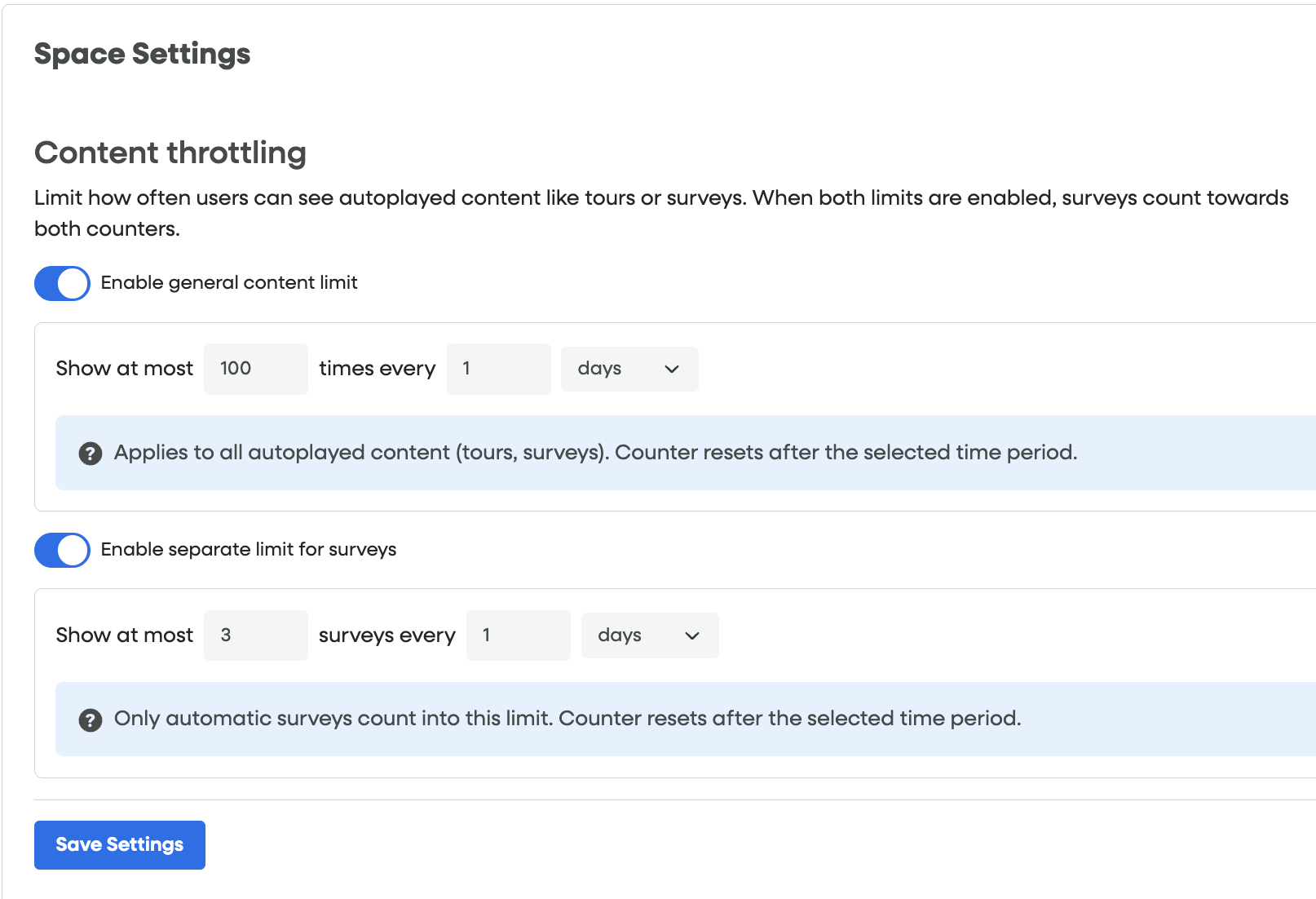
To configure throttling for your Space, navigate to Space → Space Settings.
Permissions Notice: Access to these settings is restricted to users with Admin or Global Admin roles. If you do not see this option, please contact your organization's Admin or Global Admin.
You have two levels of control in Content Throttling:
1. General Content Limit
This applies to all autoplayed content, including both tours and surveys.
Toggle: Enable "General content limit".
Limit: Enter the maximum number of times any content can show (e.g.,
100).Timeframe: Set the renewal period (e.g., every
1day).
2. Separate Limit for Surveys
Use this if you want to be extra careful with survey frequency specifically.
Toggle: Enable "Separate limit for surveys".
Behavior: When both limits are enabled, surveys count towards both counters. This allows you to set a high limit for helpful tours but a much lower, stricter limit for surveys (e.g., 100 tours allowed, but only 3 surveys).
Don't forget to click "Save Settings" once finished.
Technical Verification
You can verify throttling status in your browser’s Local Storage under the key uf_throttling:
| Parameter | Description |
renewalDate | Shows when the counter will reset. |
showedContent | Logs which content was displayed and the timestamp. |
usage | An incrementing number that tracks views against your limit. |

Why use throttling?
Prevent Fatigue: High-frequency pop-ups can lead to "banner blindness" or user frustration.
Prioritize Feedback: By setting a lower separate limit for surveys, you ensure you don't annoy users while still collecting vital data.
Full Control: Maintain a professional, non-intrusive flow across your application.
Understanding the Interaction: A Use Case
When both the General Content Limit and the Separate Limit for Surveys are enabled, they work together to create a "safety net" for your user experience.
The Scenario
Imagine you have configured your settings as follows:
General Content Limit: 10 times every 24 hours.
Separate Survey Limit: 2 surveys every 24 hours.
How it Plays Out
Surveys count toward both counters: Every time a survey is shown, it consumes "1 slot" from your Survey Limit and "1 slot" from your General Limit.
Tours only count toward the General Limit: An autoplay tour will only consume a slot from your General Limit.
The "First-to-Max" Rule: Whichever limit is reached first will stop that specific type of content.
Example Timeline
User Action 1: Sees an Autoplay Tour. (General: 1/10 | Survey: 0/2).
User Action 2: Sees Survey A. (General: 2/10 | Survey: 1/2).
User Action 3: Sees Survey B. (General: 3/10 | Survey: 2/2).
Result: The user has reached their Survey Limit. They can still see up to 7 more Tours, but they will not see any more Surveys until the 24-hour reset.
User Action 4: If the user sees 7 more Tours, they hit the General Limit (10/10). At this point, all autoplay content stops, regardless of the survey count.
Best Practices Tip
Set your General Content Limit high enough to allow for helpful onboarding tours, but keep your Separate Survey Limit low (e.g., 1 or 2) to prevent survey fatigue and maintain high response quality.