
Usetiful makes it fast and easy to build onboarding content collaboratively with your team. You can invite team members to your account to work on content together in real-time.
1. Inviting Team Members
The teamwork feature is available on all plans, including the Free plan.
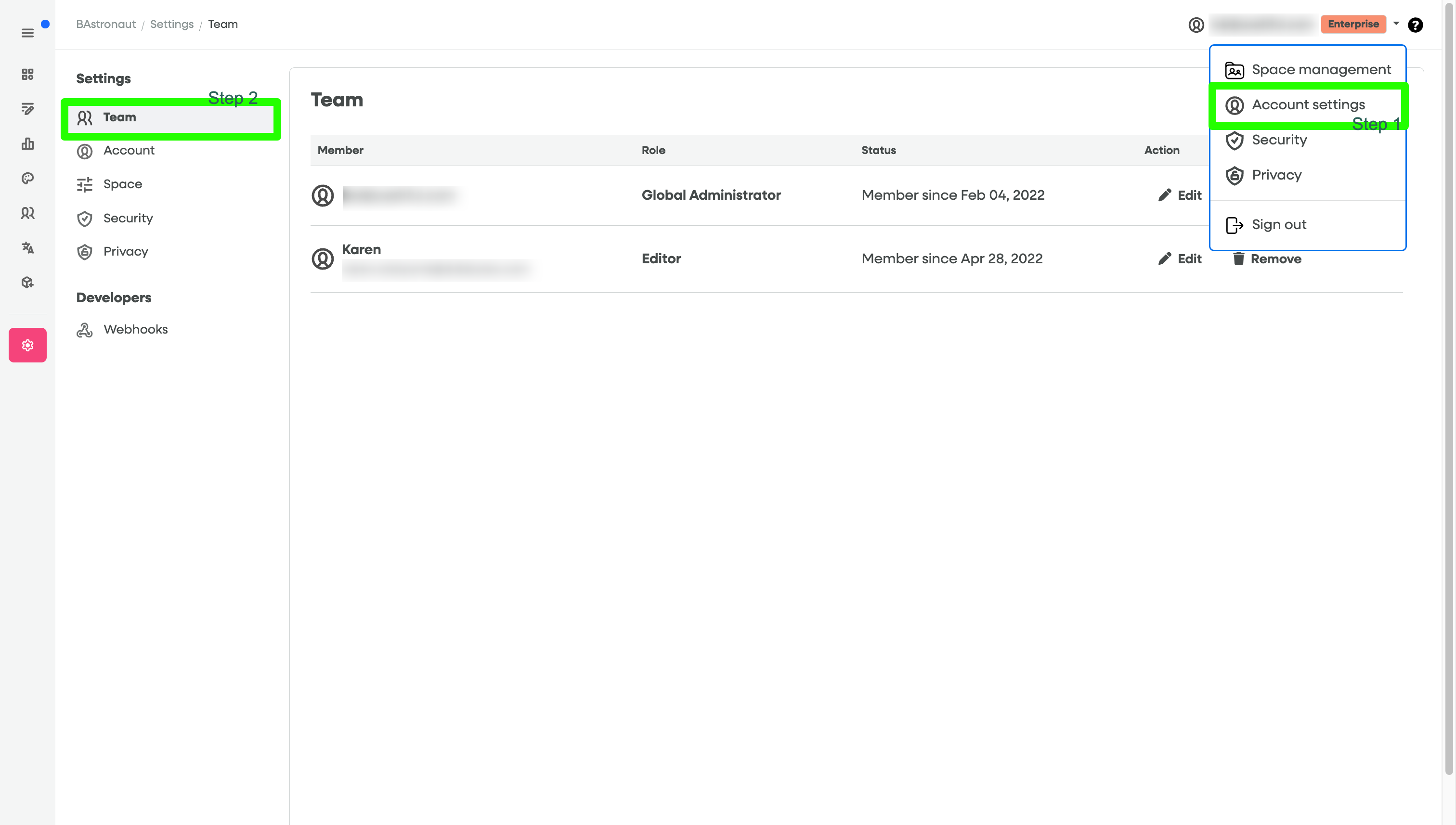
Click on the gear icon in the side menu. Or navigate to Account settings -> Team
Click the
+ Add Memberbutton.
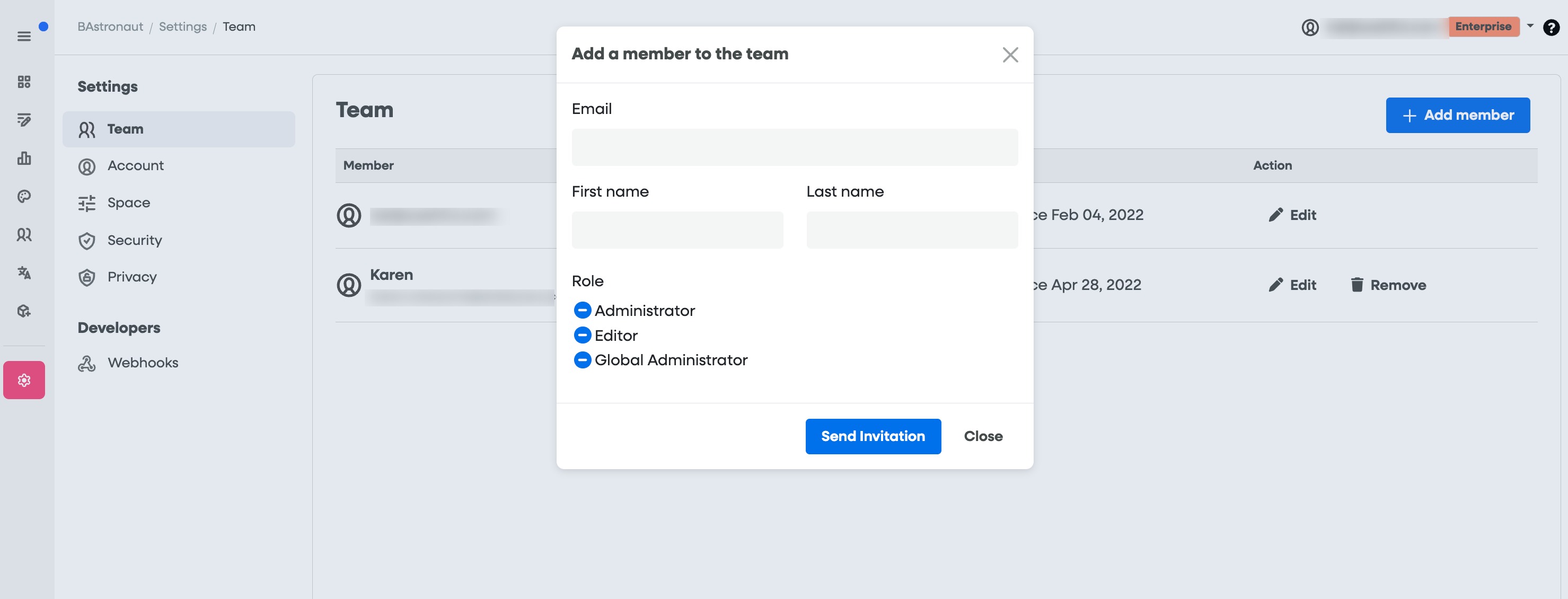
3. Enter the member's email address, name, and select their Role type.
4. The new member will receive an invitation email with instructions on how to join your account.
2. Team Capacity by Plan
| Plan | User capacity |
| Free | 2 (1 owner + 1 collaborator) |
| Plus | 3 (1 owner + 2 collaborators) |
| Premium | 7 (1 owner + 6 collaborators) |
| Enterprise | Unlimited |
3. Understanding User Roles and Permissions
Usetiful supports three role types: Global Administrator, Administrator, and Editor.
Security Note: Global Administrators and Administrators can add, remove or edit other users from your account. Only assign these roles to members you completely trust.
| Role | Core Permissions | Administrative Permissions | Special Notes |
| Editor |
| None | |
| Administrator | Includes all permissions of the Editor role. |
| |
| Global Administrator | Includes all permissions of the Editor role. |
| * Only a Global Administrator can remove another Global Administrator. |
If you have any questions or require further assistance, please contact our support team.